Guide / Box setup13 steps
Set up your
Quello Box.
From unboxing to protected streaming. Follow the steps in order. You’ll need the box, your TV, your Wi‑Fi password and the login we email you.
Set up the box
Connect the VPN
Android phone · optional
Step 01 / 13
Unbox your Quello Box
Take everything out of the box and place the Quello Box near your TV.
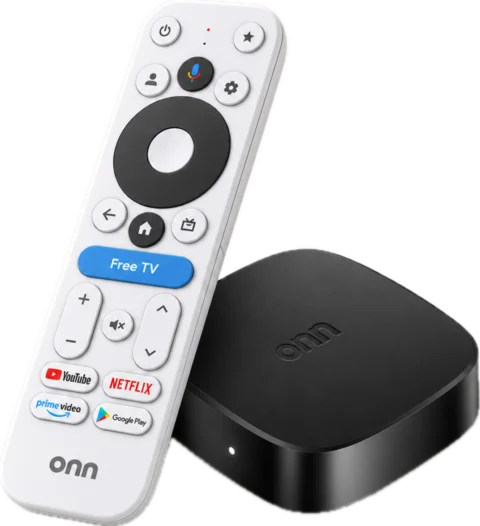
What’s in the box: the Quello Box, a voice remote with 2 AAA batteries, an HDMI cable and a power adapter (plug type based on your shipping country).
Before you continueMake sure every item is there and undamaged. If anything is missing, contact Quello support before you continue.
- HDMI cableBox to TV
- Power adapterUSB‑C
- 2 AAA batteriesFor the remote
Step 02 / 13
Connect it to your TV
Plug one end of the HDMI cable into the Quello Box and the other into a free HDMI port on your TV.
TipNote the number next to the port you used, for example HDMI 2. You’ll need it in the next step.
Step 03 / 13
Plug in the power
Connect the power adapter to the Quello Box and plug it into a wall socket. The light on the front of the box turns on.
Turn on your TV and use its own remote to switch to the HDMI input you used, often with the Source or Input button.
TipIf the screen stays black, check both ends of the HDMI cable and that the TV is on the right input.
Step 04 / 13
Pair the remote
Put the 2 AAA batteries into the Quello remote. When the box asks, follow the on‑screen instructions to pair it.
TipKeep the remote close to the box while it pairs.
Step 05 / 13
Connect to your Wi‑Fi
Choose your home Wi‑Fi network from the list on screen and enter its password with the remote.
TipFor the smoothest streaming, place the box where your Wi‑Fi signal is strong.
Choose a Wi‑Fi network
- Your home Wi‑Fi
- Neighbour 5G
- Guest network
Step 06 / 13
Open Quello
Press the Home button on the remote. The Quello app is already installed: select it to open it.
TipCan’t see it? Look in the apps row on the home screen.
Apps
- Quello
Preinstalled
Step 07 / 13
Sign in
Sign in with the email and password from your Quello login email. We send it after you order.
ImportantCan’t find your login email? Check your spam folder, or contact support and we’ll resend it.
Sign in to Quello
From your login email
Step 08 / 13
Pick a server and connect
Use the remote to choose a server location, then connect. Every plan includes every location.
TipPick a server close to you for the smoothest streaming.
Choose a server
- London
- Frankfurt
- New York
Step 09 / 13
Check you’re protected
Quello shows that you’re connected. Everything you watch and browse on the box now goes through the VPN.
You’re all setYour TV is protected. Watch your streaming apps through the box, not your TV’s own built‑in apps.
Everything on the box is protected
Step 10 / 13
Change server (optional)
To switch location, open Quello, choose another server and connect. Your box stays signed in.
TipSwitching takes a few seconds.
Choose a server
- London
- Frankfurt
- New York
Step 11 / 13
Install Quello on your phone (optional)
Want your Android phone or tablet protected too? Install the Quello app on it.
TipDownload the app on your phone from quello-box.com/android-app.apk (30.6 MB). Android asks once to allow installs from your browser: tap Settings, turn it on, then go back.
Android phone
Step 12 / 13
Sign in with the same account
Sign in with the same email and password you use on the box. Each phone or tablet counts as one of your plan’s connections.
TipYour plan shows how many connections it includes, for example Box + 2 phones or tablets.
Sign in to Quello
Same account as your box
Step 13 / 13
Connect on your phone
Choose a server and connect. Your phone is now protected wherever you use it.
All doneYour box and phone share one account. When your plan ends, renew online and keep the same box.
Quello
Connected · LondonStuck on a step?
We’ll help.
Our team answers Monday to Saturday, 24 hours a day, on Telegram and Discord.